
AI can be really handy while you browse the web (summaries, explanations, translations, quick fact-checks).
But if you care about privacy and data control, you may prefer Brave. In this quick guide, you’ll connect Brave Leo to your own private AI inference on NEAR AI Cloud, so you can use an AI assistant inside your browser without relying on a typical “send everything to Big Tech” setup.
NEAR AI Cloud + Brave turn “private AI” into a default, not a luxury. You get state-of-the-art open models through private inference, without owning a GPU or running anything locally. No credit card required either, you can fund it with crypto via NEAR Intents, so anyone can access powerful AI from their browser, even on a tight budget.
Setup NEAR AI Cloud account
- Learn the basics of NEAR AI Cloud
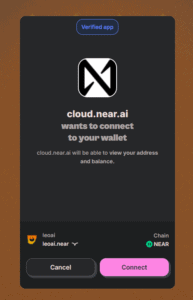
- Sign in to the NEAR AI Cloud dashboard using your NEAR account.
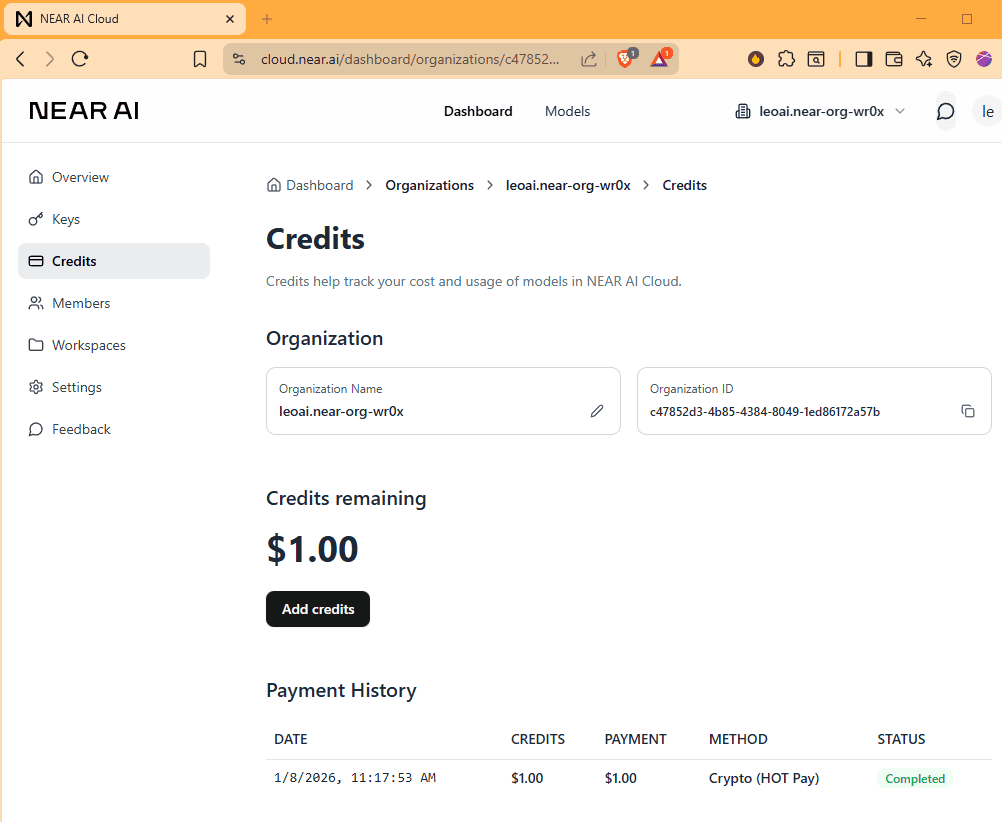
- Add credits
Go to Credits, then add a small amount first (good for testing).
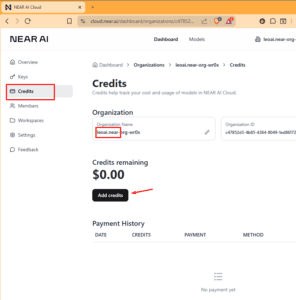
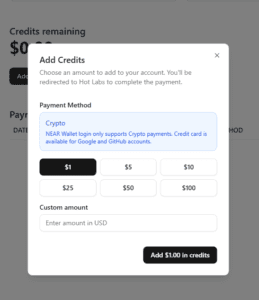
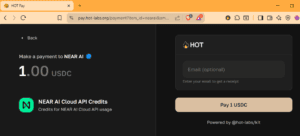
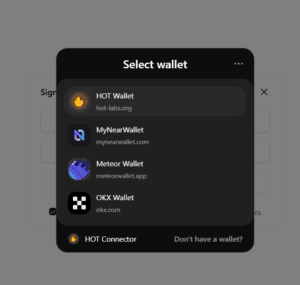
- Choose a wallet to pay with
You can pay with many assets, thanks to NEAR Intents (and HOT DAO).
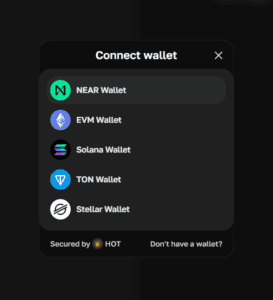
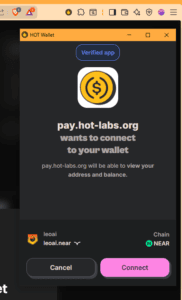
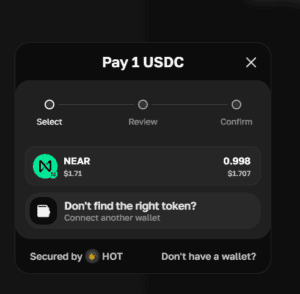
- Let NEAR Intents process the payment
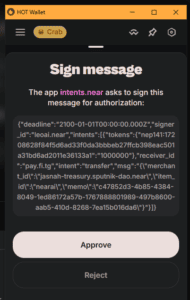
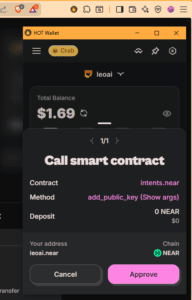
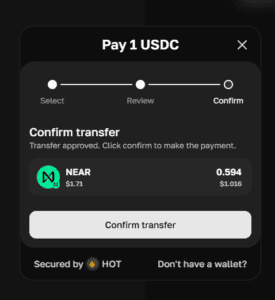
- Once it completes, your NEAR AI Cloud account is funded, no credit card, no KYC, no extra personal data.
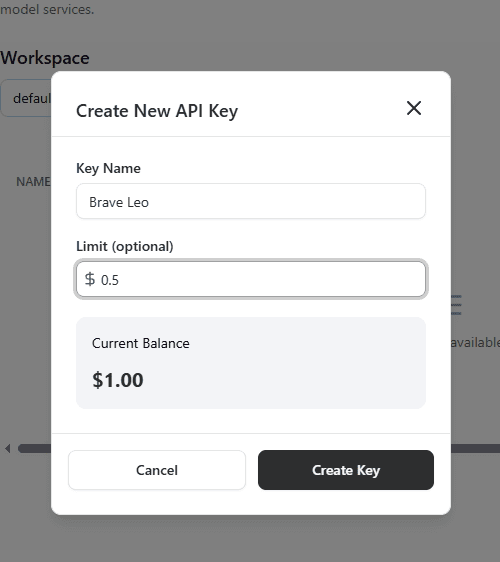
- Create an API key (important)
You’ll connect Brave to NEAR AI Cloud via API. Create a new key and set a small limit for safe testing.
Tip: Copy and store the key right away. NEAR AI does not store it for you.


Connect to Leo in Brave
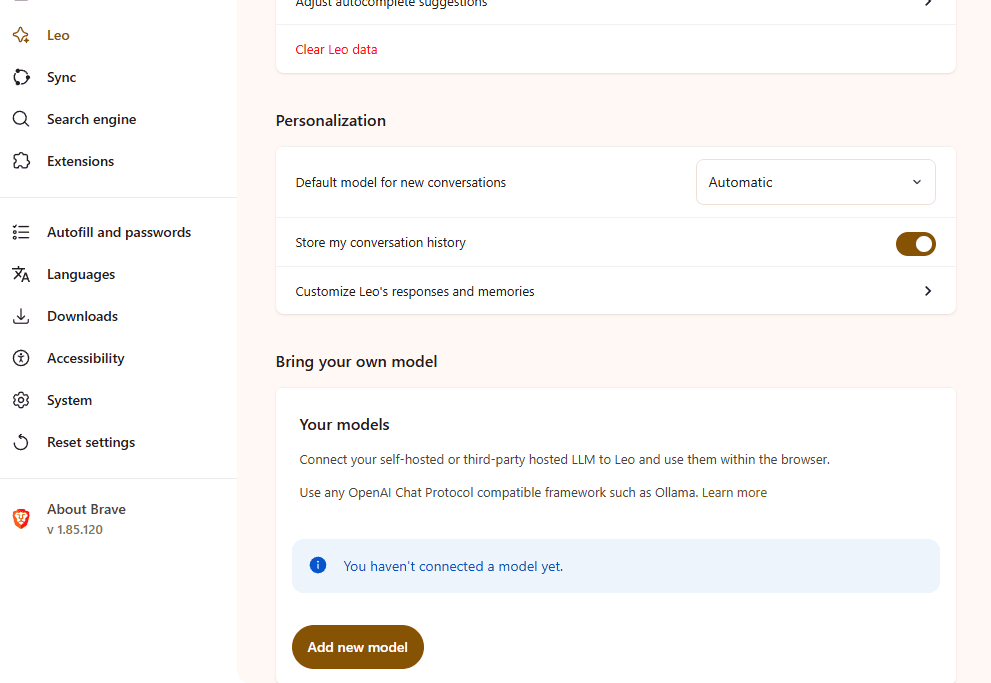
- Open Brave settings and add your model
In Brave, go to Leo settings and click Add model.
- Pick a model
We recommend GLM-4.7 for the best results.
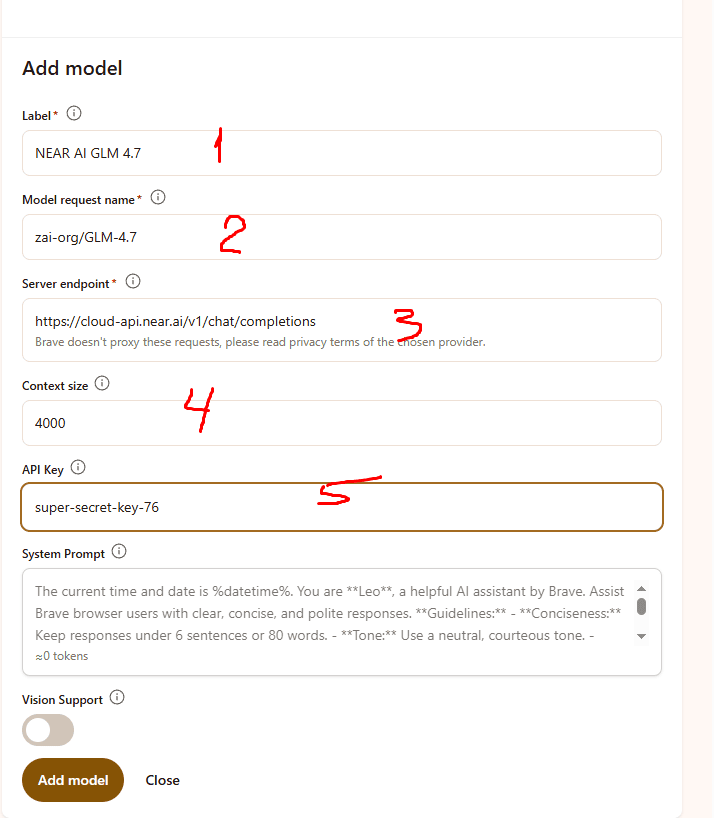
- Fill in the model settings from your NEAR AI Cloud dashboard
Use the values shown in the screenshots.
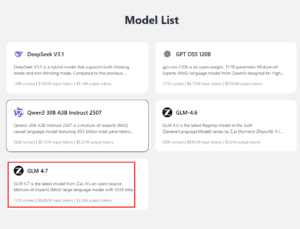
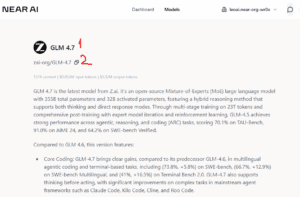
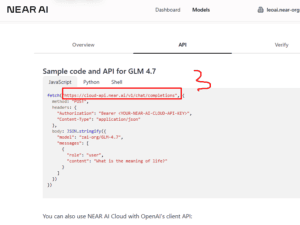
4 – Token limit: Brave default is 4000 (we use the same)
5 – API key: Paste the NEAR AI Cloud key you created. - Set your new model as the default for Leo.
Done.
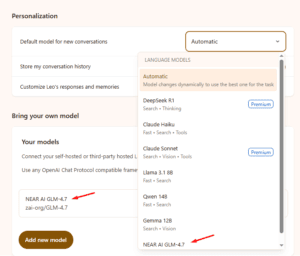


Try it!
- Let’s check how it works. Click to open Leo in side panel and try it
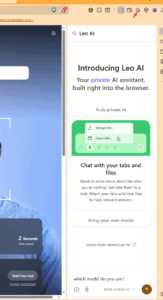
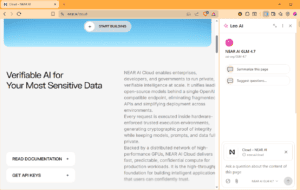
- You can also use Leo from the right-click context menu on websites.
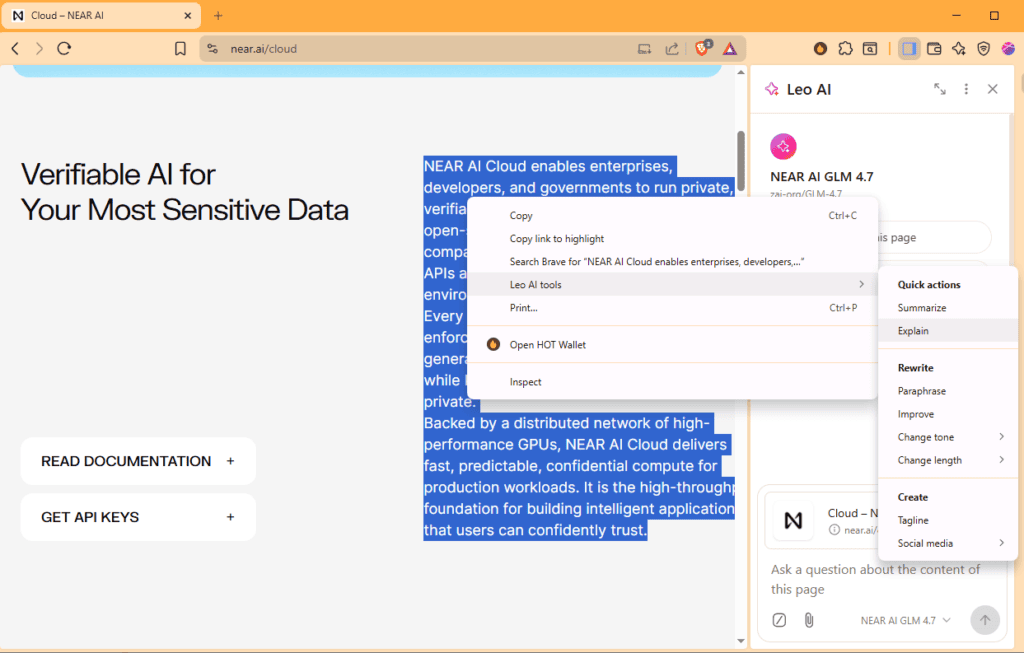
- Leo vs (L)Earn AI (quick note)
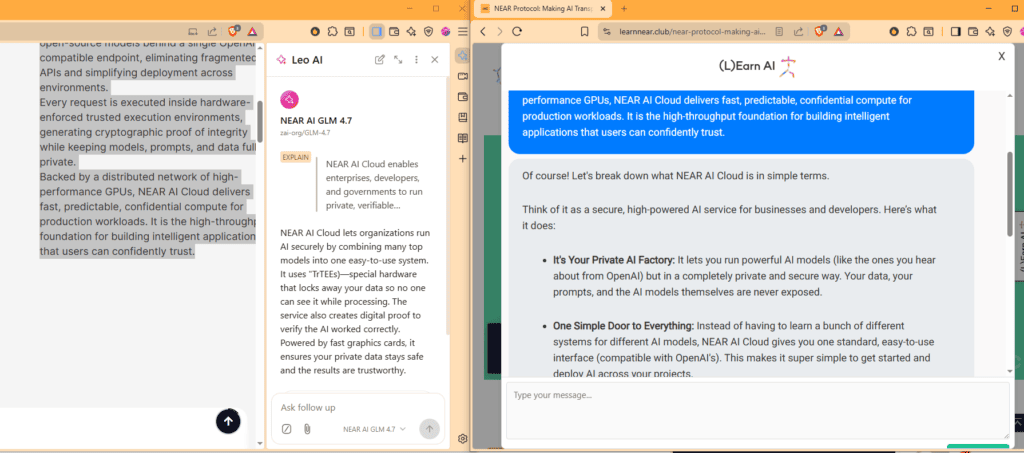
We compared Brave Leo and (L)Earn AI replies on an LNC guide. No surprise, (L)Earn AI tends to be more relevant when the topic is NEAR.
The good news is you can customize your Leo to fit your needs. If you want a simple way to improve results, start with prompt basics.
This guide can help to understand the basics.
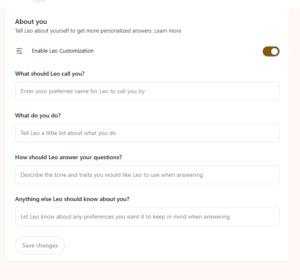
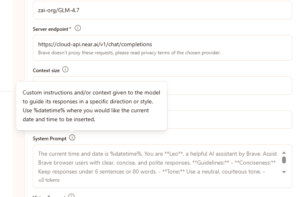


Simple and useful system prompt for you Leo:
You are **Leo**, a helpful and concise web browsing assistant. Respond to user requests clearly and directly, without unnecessary elaboration. Maintain a neutral, professional tone. Provide quick and accurate answers—especially when summarizing webpages, answering questions, or extracting key information. Avoid repetition or filler language in all responses.
Conclusion
You now have a private AI assistant inside Brave powered by NEAR AI Cloud. Keep your API key safe, start with small limits while testing, and iterate on your model and prompt setup until it feels perfect for your workflow.
please login with NEAR
Updated: January 9, 2026